Unlocking Golden Hour Magic: A Complete Guide to the 220 Sunshine Brushes for Photoshop and Procreate
In the world of digital art and photo editing, lighting is everything. It defines mood, creates depth, and draws the viewer’s eye to the focal point of an image. However, replicating the ethereal quality of natural sunlight—those soft, glowing beams that filter through trees or the harsh, dramatic rays of a midday sun—can be incredibly challenging for artists and photographers alike. This is where specialized tools like the 220 Sunshine Brushes come into play. Designed for both Adobe Photoshop and Procreate, this comprehensive brush set offers a shortcut to achieving professional-grade lighting effects without the need for complex manual painting techniques.
What Are Sunshine Brushes?
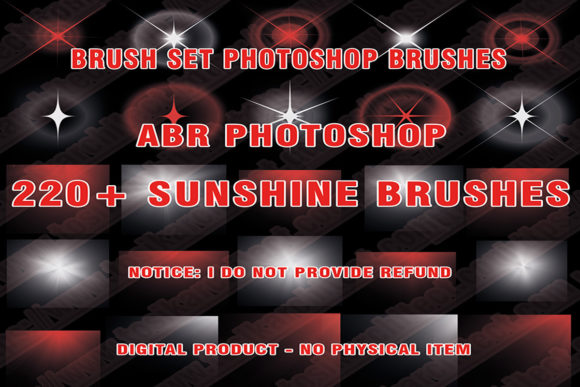
At their core, sunshine brushes are digital presets that mimic the behavior of light. Unlike standard round or square brushes that simply apply color, these tools are engineered to create textures, gradients, and overlays that resemble sunbeams, lens flares, god rays, and ambient glow. The "220 Sunshine Brushes" collection is particularly notable for its volume and variety, providing users with a vast library of options to suit different artistic needs.
These brushes are typically distributed in the .abr file format, which is the standard preset format for Adobe Photoshop. For Procreate users, compatibility is often achieved through PNG sequences or specific import methods, allowing iPad artists to access the same high-quality assets. Whether you are retouching a portrait, designing a fantasy landscape, or creating social media graphics, these brushes serve as a powerful layer in your creative workflow.
The Significance of Light in Digital Composition
Understanding why these brushes are so valuable requires a look at the role of light in visual storytelling. In photography, "golden hour" is prized for its warm, soft illumination. In digital painting, light sources define the time of day and the atmosphere of a scene. Manually painting realistic light leaks or sunbursts requires a deep understanding of blending modes, opacity, and color theory. It is a time-consuming process that can frustrate beginners and slow down professionals.
The Sunshine Brush Set 220 simplifies this process. By providing pre-made assets that react naturally to layer blending modes (such as Screen, Overlay, or Soft Light), these brushes allow creators to focus on composition rather than technical execution. This efficiency is crucial in modern creative workflows, where turnaround times are often tight.
Key Features of the 220 Sunshine Brush Collection
What sets this specific collection apart is its diversity. With 220 unique variations, the set covers a wide spectrum of lighting scenarios. Here is a breakdown of what you can expect:
- Sunbeam Variations: From sharp, defined rays to soft, diffused glows, these brushes replicate the way light travels through dust or fog.
- Lens Flares and Artifacts: Realistic optical imperfections that add authenticity to digital renders.
- Ambient Glow: Subtle light washes that can brighten a dark corner of an image or add warmth to a cool-toned photo.
- Texture Overlays: Brushes that include grain or noise, helping light effects blend seamlessly with photographic backgrounds.
Each brush is created in Photoshop CC, ensuring high resolution and compatibility with modern software versions. This attention to detail means that even when scaled up for large-format prints, the edges remain crisp and the gradients smooth.
How to Install and Use Sunshine Brushes
Getting started with the 220 Sunshine Brushes is straightforward, but proper installation is key to ensuring they work correctly in your preferred software. Below is a step-by-step guide for both Photoshop and Procreate users.
Installation for Adobe Photoshop
- Download the File: Click the download link provided by the creator to save the .abr file to your computer. Ensure you know where the file is saved (e.g., your Downloads folder).
- Open Photoshop: Launch Adobe Photoshop CC or a compatible version.
- Import the Brushes: Go to Window > Brushes to open the Brushes panel. Click the menu icon in the top right corner and select Import Brushes.
- Select the .abr File: Navigate to the location where you saved the file, select it, and click Load.
- Start Creating: The new brushes will appear at the bottom of your brush list. Select a brush, choose a warm color (like orange or yellow), and start painting on a new layer.
Usage Tips for Procreate
While Procreate uses a different native format, many brush sets include PNGs or specialized files for iPad users. If you are using the PNG assets included in the set:
- Import Images: Save the PNG files to your Photos app on iPad.
- Create a New Layer: In your Procreate canvas, add a new layer above your artwork.
- Insert Photo: Use the Add > Insert a photo option to place the sunbeam image.
- Adjust Blending Mode: Change the layer mode to Screen or Add to make the black background transparent, leaving only the light effect.
- Transform and Resize: Use the transform tool to position the light source naturally within your composition.
Practical Applications in Modern Creativity
The versatility of the Sunshine Brushes extends beyond simple photo enhancement. Here are several ways creators are integrating these tools into their daily work:
Portrait Retouching: Photographers often use sunbeam brushes to add a dreamy, romantic feel to wedding or engagement photos. A subtle overlay can mimic the look of backlighting, adding warmth to the subject’s skin tones.
Digital Painting and Illustration: Concept artists use these brushes to quickly establish lighting direction in environment sketches. Instead of painting every ray of light manually, they can stamp in a sunburst and refine it with erasers and masks, saving hours of work.
Social Media Content: Influencers and graphic designers use light leaks and flares to create trendy, vintage-inspired aesthetics for Instagram stories and posts. The sunlight abr files allow for quick experimentation with different moods.
Common Misunderstandings About Light Brushes
One common assumption is that using pre-made brushes is "cheating" or results in generic-looking art. However, this view overlooks the skill involved in integration. A raw brush stroke rarely looks perfect on its own. The artistry lies in adjusting the opacity, using layer masks to hide unnatural edges, and color-grading the effect to match the existing lighting in the image. When used thoughtfully, these tools enhance creativity rather than replace it.
Another misunderstanding is that these brushes only work on dark backgrounds. In reality, with the right blending modes (such as Multiply for shadows or Overlay for midtones), sunshine brushes can be adapted to bright, high-key images as well.
Why Choose the 220 Sunshine Brush Set?
With countless free and paid brush packs available online, why should you choose this specific set? The answer lies in curation and quality. Many free packs contain repetitive or low-resolution assets. The 220 Sunshine Brushes are curated to provide distinct variations, ensuring that you don’t end up with the same sunbeam shape in every project. Furthermore, the inclusion of both sharp and soft options allows for greater control over the realism of the effect.
For educators and students, this set serves as an excellent learning tool. By analyzing how the brushes are constructed, beginners can learn more about how light behaves digitally. It bridges the gap between technical software skills and artistic intuition.
Conclusion
Lighting is the soul of visual art, and mastering it is a journey that every digital creator undertakes. The 220 Sunshine Brushes for Photoshop and Procreate offer a powerful, accessible way to elevate your work. Whether you are looking to add a subtle glow to a portrait or create a dramatic sunset in a digital painting, this collection provides the tools you need to bring your vision to life.
By understanding how to install, customize, and integrate these sunlight beam effects, you can save time and enhance the emotional impact of your creations. Remember, the goal is not just to apply a filter, but to use these tools to tell a better story. Download the abr file today, experiment with different blending modes, and let your creativity shine.
Ready to transform your digital art? Click the download link to get the full 220 Sunshine Brushes set and start exploring the power of light in your next project.