Unlocking Digital Creativity: A Guide to Using 16 Leaves Stamp Brushes in Procreate
In the rapidly evolving world of digital art, efficiency and aesthetic quality often go hand in hand. For artists, designers, and hobbyists using the iPad, Procreate has emerged as the industry-standard application for illustration, painting, and design. Within this ecosystem, custom brushes play a pivotal role in expanding creative possibilities. One such powerful tool is the 16 Leaves Stamp Brushes set. This digital asset allows creators to incorporate intricate botanical elements into their work with ease, transforming simple compositions into lush, detailed masterpieces.
Understanding how to utilize these digital stamps effectively can significantly enhance your workflow. Whether you are designing wedding invitations, creating greeting cards, or illustrating complex nature scenes, knowing the ins and outs of digital brush sets is essential. This article explores the purpose, significance, and practical application of leaf stamp brushes, helping you build a broader understanding of how digital assets fit into modern creative practices.
The Role of Stamp Brushes in Digital Design
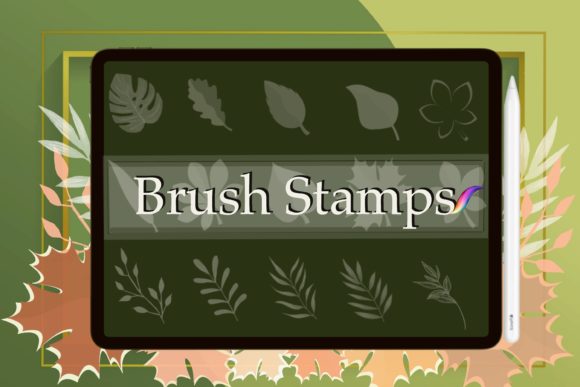
Before diving into the specifics of the leaf set, it is important to understand what a "stamp brush" actually is. Unlike traditional painting brushes that simulate the flow of paint or pencil graphite, stamp brushes are pre-designed images that are stamped onto the canvas with each tap or stroke. In the case of the 16 Leaves Stamp Brushes, each stamp is a high-resolution image of a leaf.
The primary advantage of using stamp brushes is time efficiency. Drawing realistic foliage by hand requires a deep understanding of anatomy, lighting, and texture. It can take hours to render a single branch convincingly. With stamp brushes, you can place complex, professionally designed leaves instantly. This does not mean the artist is taking a shortcut; rather, they are leveraging tools to focus on composition, color theory, and overall design layout.
Furthermore, these stamps come with transparent backgrounds. This technical feature is crucial for digital layering. It allows you to add your own textures, colors, and patterns underneath or over the leaves without worrying about white boxes or unwanted borders appearing around your artwork. This flexibility ensures that the final piece looks cohesive and organic, rather than like a collage of disjointed images.
Practical Applications for Artists and Designers
The versatility of the 16 Leaves Stamp Brushes extends far beyond simple nature illustrations. Here are several practical ways these digital assets can be integrated into various projects:
- Invitation and Stationery Design: Wedding invitations, birthday cards, and save-the-dates often feature botanical motifs. Using leaf stamps allows designers to create elegant borders or corner accents quickly.
- Digital Scrapbooking: For those who enjoy digital journaling, these brushes provide realistic elements that add depth and realism to page layouts.
- Pattern Creation: By rotating, resizing, and recoloring the 16 different leaf variations, artists can create seamless repeating patterns for fabric design or wallpaper.
- Concept Art and Backgrounds: Game developers and illustrators can use these stamps to quickly populate forest backgrounds, adding density and detail to environments without rendering every single leaf manually.
It is important to note that while these tools are powerful, they require a degree of artistic intuition. To avoid a "copy-paste" look, experienced users vary the opacity, size, and rotation of each stamp. They also experiment with blending modes within Procreate to make the leaves interact naturally with the light and shadow of the scene.
Technical Requirements and Compatibility
One of the most common misunderstandings regarding digital art assets is compatibility. The 16 Leaves Stamp Brushes are designed specifically for the Procreate app on the iPad. This distinction is vital for potential buyers. These files will not work in Adobe Photoshop, Clip Studio Paint, or any other desktop-based software unless converted, which is often a complex and unnecessary process.
To use this product, you must have:
- An iPad capable of running the Procreate application.
- An Apple Pencil or compatible stylus for precise control.
- The Procreate app installed on your device.
- A file management app on your iPad or computer to unzip the downloaded file.
Because this is a DIGITAL FILE, there is no physical shipment. Once payment is confirmed, the files become available for immediate download. This instant access model is standard for digital goods, allowing creators to start working on their projects immediately. However, it also means that there are no refunds or exchanges due to the nature of the purchase. Once the file is downloaded, it cannot be "returned." Therefore, it is crucial to verify that you have the appropriate hardware and software before purchasing.
How to Install and Use Your Digital Brushes
For beginners, the process of installing custom brushes can seem daunting. However, Procreate has streamlined this process. The download typically includes a ZIP file containing the brush set, an instruction guide, and a ReadMe file. Here is a general overview of how to get started:
First, locate the downloaded ZIP file on your iPad. You may need to use the "Files" app or a third-party unzipping program to extract the contents. Inside, you will find the .brushset file. Tap on this file, and it should automatically open in Procreate, importing all 16 leaf stamps into your brush library.
Once installed, select the brush from your library. You will see the 16 variations available. To customize them, use Procreate’s built-in adjustment tools. You can change the color by selecting a new hue from the color disk. You can adjust the size using the slider on the left side of the screen. For more advanced effects, try changing the layer blending mode to "Multiply" for shadows or "Screen" for highlights.
Maximizing Creative Potential
To truly master these brushes, consider the following tips:
- Layering: Do not rely on a single layer. Place leaves on multiple layers to create depth. Foreground leaves can be sharper and darker, while background leaves can be blurred and lighter.
- Color Variation: Nature is rarely monochromatic. Use the color dynamics settings in Procreate to introduce slight variations in hue and saturation for a more organic look.
- Custom Textures: Since the backgrounds are transparent, you can paint textures underneath the leaves. Try adding a watercolor wash or a paper texture to give your digital art a traditional feel.
Conclusion
The 16 Leaves Stamp Brushes for Procreate represent more than just a collection of images; they are a gateway to enhanced creativity and efficiency. By understanding the technical requirements, respecting the digital nature of the product, and exploring the diverse applications of stamp brushes, artists can elevate their digital projects. Whether you are a seasoned professional looking to speed up your workflow or a beginner eager to create beautiful botanical designs, these tools offer a valuable resource for your artistic journey.
Remember, the key to successful digital art lies not just in the tools you use, but in how you use them. Experiment with transparency, layering, and color to make these leaves your own. With the right approach, you can create stunning, professional-quality artwork that resonates with viewers and clients alike. If you encounter any issues with your download or installation, most creators encourage you to contact them directly for support, ensuring a smooth experience from purchase to creation.