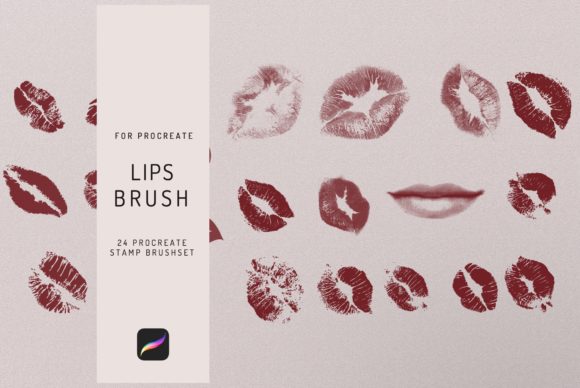
Lips Procreate Stamps for Digital Artists
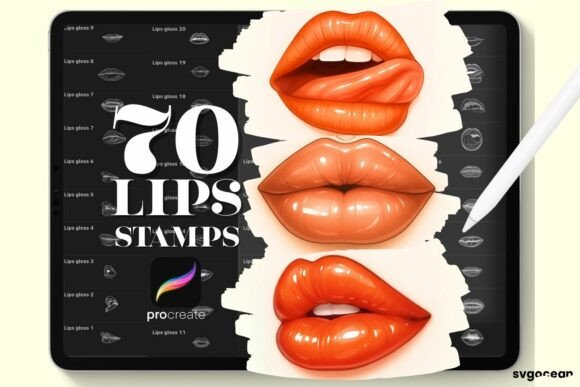
Digital illustration has revolutionized the way artists approach character design, fashion sketches, and portrait work. One of the most time-consuming aspects of drawing realistic or stylized faces is rendering the lips. Getting the shape, symmetry, and texture right can take hours of meticulous brushwork. This is where specialized tools like Lips Procreate Stamps become invaluable. Designed specifically for use with the Procreate app on an iPad with an Apple Pencil, these stamps offer a streamlined solution for artists who want to maintain high-quality results without sacrificing efficiency.
Whether you are a professional illustrator working on tight deadlines, a hobbyist exploring digital art, or a small business owner creating content for social media, understanding how to integrate these tools into your workflow can significantly enhance your creative process. The appeal lies not just in speed, but in the consistency and versatility they provide. By using pre-designed stamp brushes, you bypass the initial structural sketching phase, allowing you to focus on coloring, shading, and adding unique stylistic touches that make your artwork stand out.
Why Choose Specialized Lip Stamps?
The primary value of Lips Procreate Stamps is their ability to simplify complex shapes. Drawing lips involves understanding anatomy, perspective, and light interaction. For beginners, this learning curve can be steep. Even experienced artists may find themselves repeating the same basic shapes multiple times when working on series illustrations or comic strips. These stamps serve as a foundational layer that is clean and easy to use. They are not meant to replace artistic skill but rather to support it by handling the heavy lifting of structure.
Another significant advantage is customization. Unlike static clipart or stickers that are fixed in color and position, these brushes function within the dynamic environment of Procreate. You can use them in any color or opacity, allowing for seamless integration into your existing palette. Want a subtle, natural look? Lower the opacity and choose a soft pink. Need a bold, graphic novel style? Crank up the opacity and select a vibrant red. This flexibility ensures that the tool adapts to your vision, rather than forcing your vision to adapt to the tool.
Practical Applications for Creators
The utility of these stamps extends across various creative fields. For fashion illustrators, speed is often critical when presenting multiple design concepts. Being able to quickly populate a face with well-formed lips allows for faster iteration of makeup looks and overall facial expressions. Similarly, comic artists and storyboarders benefit from the consistency these stamps provide. When drawing multiple panels, maintaining character consistency is key. Using the same base stamp ensures that the character’s features remain recognizable throughout the narrative.
Social media managers and content creators also find great value in these assets. Creating engaging visuals for platforms like Instagram or Pinterest often requires quick turnaround times. With Lips Procreate Stamps, you can produce polished portraits or beauty-related graphics in a fraction of the time it would take to draw from scratch. This efficiency supports a consistent posting schedule, which is vital for growing an online presence.
In an educational context, these tools can help students understand form. By placing a stamp and then painting over it, learners can study how shadows and highlights interact with the curves of the lips. It serves as a digital tracing guide that helps build muscle memory and observational skills.
Technical Compatibility and File Format
Before purchasing, it is crucial to understand the technical requirements. These stamps are designed exclusively for the Procreate App. They are not compatible with Photoshop, Clip Studio Paint, or other desktop-based software. This specificity ensures that the brushes leverage Procreate’s unique engine, providing smooth performance and intuitive controls on the iPad.
When you purchase this product, you will receive an Instant Download in the .brushset format. This file type is native to Procreate, making the installation process straightforward. You will receive one .brushset file containing all the included lip designs. It is important to note that you must have the Procreate app installed on your iPad to utilize these files. If you are new to digital art, ensure your device meets the system requirements for running Procreate smoothly, as this will impact your overall experience with the brushes.
How to Install and Use Your Stamps
Getting started with your new tools is simple. The process is designed to be user-friendly, even for those who have never imported custom brushes before. Follow these steps to integrate Lips Procreate Stamps into your library:
- Purchase and Confirmation: After completing your purchase, you will receive an email confirmation. This email contains a secure download link for your files. Check your spam folder if you do not see it in your inbox within a few minutes.
- Download the Files: Click the link to download the
.brushsetfile to your iPad. It is often easiest to save this file to your "Files" app or open it directly from Safari if you are downloading on the iPad. - Import into Procreate: Open the Procreate app. Tap on the brush icon to open the Brush Library. In the top left corner, tap the "+" symbol or the "Import" option (depending on your version, you may need to tap the specific brush set category first). Navigate to the location where you saved the
.brushsetfile and select it. Procreate will automatically install the brushes into a new set at the bottom of your library.
Once installed, you can start using them immediately. Select the stamp brush, choose your desired color from the palette, and tap on your canvas. You can resize and rotate the stamp using the transform tool to fit the specific angle and proportion of your character’s face. Remember, you can adjust the opacity in the layers panel or within the brush settings to blend the stamp naturally with your skin tones.
Tips for Best Results
To get the most out of Lips Procreate Stamps, consider a few best practices. First, always use a separate layer for your stamps. This allows you to adjust the position, size, and opacity without affecting the rest of your drawing. Second, experiment with blending modes. Setting the layer to "Multiply" or "Overlay" can help the stamp interact more realistically with underlying skin textures and shadows.
Finally, do not be afraid to modify the stamp after placement. Use standard Procreate brushes to add highlights, refine edges, or adjust the shape slightly. The stamp provides the foundation, but your personal touch brings the artwork to life. By combining the efficiency of these clean and easy-to-use stamps with your unique artistic style, you can create stunning digital portraits with greater ease and confidence.